Remote Access to the Synology NAS DS223j from the Internet: A Complete Step-by-Step Guide
Reading time: ~10 minutes | Category: Guides and Manuals
You’ve set up your NAS, configured the drives in a RAID 1 array, protected it from ransomware, and set up your backup rotation—and now comes the logical question: what about when you’re not at home?
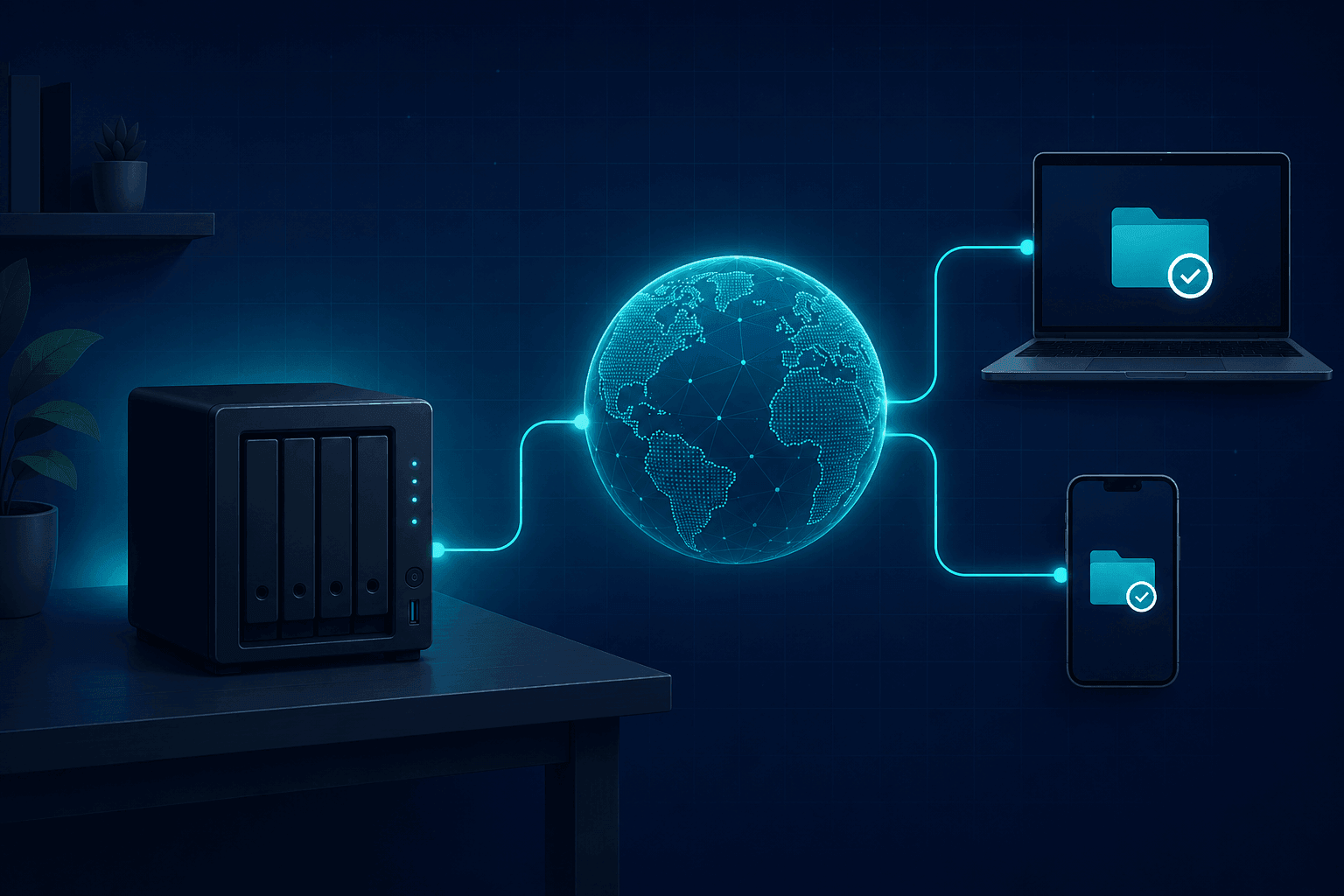
A local network is convenient, but life happens outside of it, too. At the office, you need files from home. On a business trip, you need access to your archives. You want to share a folder with a client or colleague without sending files via email. For all of this, you need remote access to your NAS over the Internet.
In this guide, we’ll cover the three main methods—from the easiest to the most secure—with clear steps, screenshot descriptions, and security tips.
Before You Begin: What You’ll Need
- Synology DS223j with DSM 7.x (up to date)
- Synology account (free) — sign up at account.synology.com
- Access to your router (for methods 2 and 3)
- 2FA enabled on your account — required before opening anything to the internet
Method 1: QuickConnect — The easiest way (no router configuration required)
QuickConnect is a Synology service that provides you with a permanent address to access your NAS without having to deal with IP addresses, port forwarding, or DDNS. Everything goes through Synology’s servers, which is both an advantage (ease of use) and a disadvantage (slower file transfers).
Step 1: Go to DSM → Control Panel → QuickConnect
Open a browser and log in to DSM on your DS223j (usually 192.168.1.x:5000 from the local network). Go to:
Control Panel → Connectivity → QuickConnect
Step 2: Log in to your Synology account
If you don’t have an account, click “Sign Up”—the process takes about 2 minutes. Enter your email and password.
Step 3: Select a QuickConnect ID
Enter the desired ID—for example, mynas-home. The access address will be:
https://quickconnect.to/mynas-home
Choose something that isn’t obvious (not ivan123 or home-nas). Click Apply.
Step 4: Check which services are enabled
Click Advanced Settings. There you’ll see a list of services—DSM, File Station, Photo Station, and others. Enable only what you need. To start with: DSM and File Station.
Step 5: Test from your phone (with Wi-Fi turned off)
Turn off Wi-Fi on your phone and open your browser. Enter https://quickconnect.to/вашето-ID. You should see the DSM login page.
✅ Done. You have internet access.
Pros and Cons of QuickConnect
| Pros | Cons |
|---|---|
| No router configuration required | Slower transfer speeds (traffic goes through Synology) |
| Works even with a dynamic IP | Dependence on Synology’s servers |
| Setup in 5 minutes | Not suitable for very large files |
Method 2: DDNS + Port Forwarding — Direct Connection Without an Intermediary
If you want a faster direct connection or have a dynamic IP from your ISP (which almost all home users do), the combination of DDNS (Dynamic DNS) and Port Forwarding is the right next step.
DDNS gives you a permanent domain-based name (e.g., mynas.synology.me) that automatically tracks your IP address, even when it changes.
Step 1: Set up DDNS in DSM
Go to:
Control Panel → Connectivity → External Access → DDNS → Add
Select a provider: Synology (free). Enter the desired hostname—for example, moyas-nas. The full address will be:
moyas-nas.synology.me
DSM will automatically update the IP address whenever the provider changes.
Step 2: Set up an HTTPS certificate (required!)
Do not allow internet access without HTTPS. DSM lets you automatically obtain a free Let’s Encrypt certificate:
Control Panel → Security → Certificate → Add → Get a certificate from Let's Encrypt
Enter the domain (moyas-nas.synology.me) and your email address. Click Apply. The process is automatic and takes about 1 minute.
Step 3: Port Forwarding on the Router
Log in to the router’s interface (usually 192.168.1.1). Find the Port Forwarding section (depending on the manufacturer, this may be called NAT, Virtual Server, etc.).
Add the following rules:
| Service | Protocol | External Port | Internal IP | Internal Port |
|---|---|---|---|---|
| DSM (HTTPS) | TCP | 5001 | 192.168.1.x (NAS IP) | 5001 |
| File Station | TCP | 5001 | 192.168.1.x | 5001 |
| WebDAV (optional) | TCP | 5006 | 192.168.1.x | 5006 |
Important: Assign a static IP to the NAS device from the router (DHCP reservation by MAC address) to prevent the internal IP from changing after a restart.
Step 4: Test Access
On a phone with Wi-Fi turned off, open:
https://moyas-nas.synology.me:5001
You should see the DSM login page with a valid HTTPS certificate (padlock icon in the browser).
✅ Direct connection without an intermediary. Faster file transfers.
Method 3: Synology Drive — Like Google Drive, but yours
If your goal is not just to access the NAS, but automatic synchronization of folders between computers, phones, and the NAS—Synology Drive is the answer. It works like Google Drive or Dropbox, but all your data stays on your NAS.
Step 1: Install Synology Drive Server
In DSM, go to Package Manager and search for Synology Drive Server. Install it (for free).
Step 2: Set up the folders for synchronization
Open the Synology Drive Admin Console:
- Enable the My Drive feature for each user
- Set a storage quota if you’re sharing the NAS with multiple people
- Select which shared folders should be accessible in Drive
Step 3: Install the Synology Drive Client on your computer or phone
Download the client from synology.com/en-global/support/download for Windows, macOS, iOS, or Android. During installation, enter:
-
The NAS address:
moyas-nas.synology.me -
Port:
5001 - Your login credentials
Select the folders you want to sync. From now on, anything you place in the synced folder on your computer will automatically be uploaded to the NAS—and vice versa.
✅ Works even without access to DSM—ideal for everyday use.
Remote Access Security — Mandatory Measures
Opening your NAS to the internet is convenient, but it carries risks. Here’s the minimum you need to do:
1. Two-factor authentication (2FA) — required
Control Panel → Users and Groups → Advanced → Two-factor authentication
Enable 2FA for all accounts, especially the administrator account. Use Google Authenticator or Synology Secure SignIn.
2. IP blocking after failed login attempts
Control Panel → Security → Protection → Automatic Blocking
Set it to: after 5 failed attempts within 5 minutes → block the IP. This stops brute-force attacks.
3. Do not use standard ports
Instead of port 5001, use a non-standard number such as 15001 or 8443. Changing the port is not a true security measure, but it significantly reduces automated scanning.
4. Firewall rules in DSM
Control Panel → Security → Firewall → Edit Rules
Allow access only from the countries you will actually be connecting from. For Bulgaria—only BG. Everything else—blocked.
5. Monitor the security log
Log Manager → Logins
Check periodically for any suspicious login attempts from unknown IP addresses.
Which method should you choose?
| Script | Recommended method |
|---|---|
| I want quick access to DSM and files from outside | QuickConnect |
| I want a direct, faster connection | DDNS + Port Forwarding |
| I want automatic folder synchronization | Synology Drive |
| I want maximum control and security | DDNS + VPN (for advanced users) |
For most home users, the combination of QuickConnect + Synology Drive covers 95% of their needs without complicated router settings.
Conclusion
Remote access to the Synology DS223j isn’t complicated if you know where to start. QuickConnect works right out of the box and is the right place to start. DDNS with port forwarding offers a direct, faster alternative. And Synology Drive turns your NAS into a personal cloud that operates on your terms.
No matter which method you choose—don’t overlook security. 2FA, automatic IP blocking, and HTTPS aren’t optional. They’re mandatory.
In the next step of this series, we’ll look at how to share specific folders with external users—with restricted access and expiring links.
Add Comment