Monitoring, Rotation, and Automatic Deletion of Backup Files on the Synology NAS DS223j
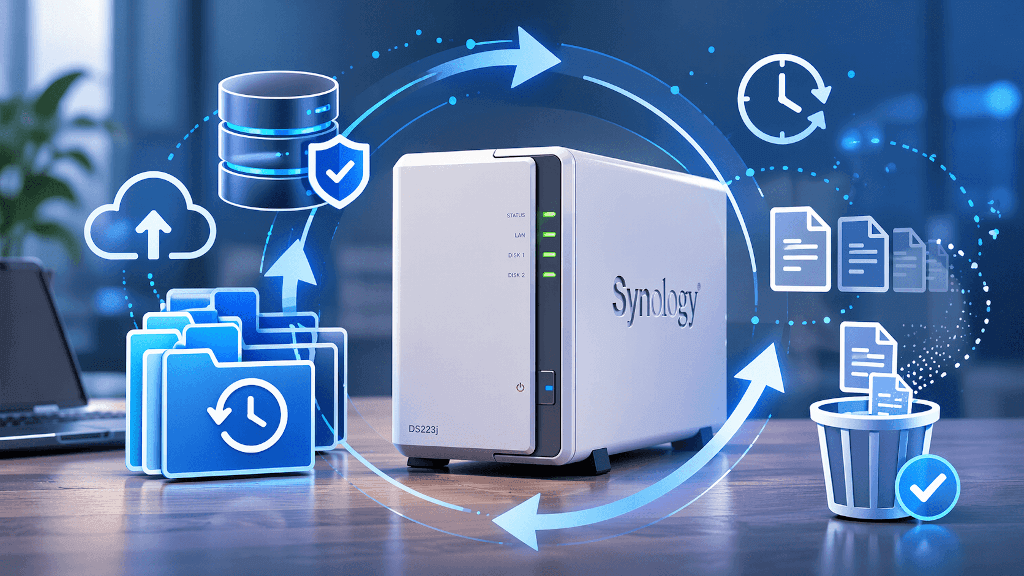
Introduction to Backup File Management on the Synology NAS DS223j
Synology NAS DS223j is a modern network-attached storage (NAS) device designed for home and small office use. Combining a compact design, affordable price, and excellent performance, it allows you to easily centralize the management of your files, including backups. Thanks to the intuitive Synology DiskStation Manager (DSM), anyone can take advantage of its rich set of tools for data protection and automation.
Backup files are the foundation of any good data protection strategy. They give you peace of mind that in the event of loss, damage, or a malicious attack, you always have a reliable copy for recovery. Maintaining your backups—through monitoring, rotation, and deletion—is crucial to prevent storage from becoming full and to keep your backups up-to-date and accessible.
Monitoring your backups allows you to detect issues such as failed backups or insufficient storage space in a timely manner. Automation reduces the need for manual intervention and minimizes the risk of errors, while automatically cleaning up old files extends the life of your NAS and optimizes disk space usage.
Monitoring Backup Files on the Synology NAS DS223j
Key Monitoring Tools
Synology DSM offers a variety of built-in monitoring tools. Hyper Backup provides an easy overview of the status of each backup job—you can see when the last backup was performed, whether it was successful, and how much space it occupies. In the Control Panel, you can monitor disk capacity and device health using S.M.A.R.T. analysis.
Configuring Notifications and Alerts
One of the most useful features in DSM is the ability to receive notifications—via email, SMS, or push notifications. This way, you’ll always know if an error occurs or a warning is issued. Thanks to Hyper Backup Notifications, setting up these notifications is quick and easy—simply set the alarm thresholds and receive timely updates.
Viewing Logs and Statuses
Each backup job generates logs that provide valuable information for diagnostics and optimization. View them in Hyper Backup or Resource Monitor to detect failed attempts, interruptions, and other anomalies, ensuring your backups remain reliable.
Backup File Rotation—What It Is and Why It’s Important
The Essence of Rotation
Backup file rotation refers to the systematic management of backups, in which older versions are deleted or replaced with newer ones. This allows you to retain only a specified number of versions without losing the ability to restore data from different time periods.
Benefits of rotation
- Save disk space – more free space for your important files.
- Easier management – fewer archives to track and maintain.
- Faster recovery – fewer files to review and restore.
Popular rotation methods
- Grandfather-Father-Son – daily, weekly, and monthly backups are retained.
- Linear rotation – when a new archive is created, the oldest one is deleted.
Synology DSM supports a variety of automatic rotation policies that can be configured in Hyper Backup according to your needs.
Configuring Backup File Rotation on the Synology NAS DS223j
Hyper Backup and Rotation
Hyper Backup is the primary backup tool on Synology NAS. When creating a backup job, you can easily enable the rotation feature, which will automatically delete old versions according to the rules you set.
Retention Policies and Versions
In the Hyper Backup settings, specify how many backup versions to keep or how long to retain them. This helps you strike a balance between your need for historical data and available storage space.
Sample rotation settings
- Daily backups for the last 7 days
- Weekly backups for the last month
- Monthly backups for the last 6 months
This approach ensures sufficient recovery options without overloading your NAS.
Automatically delete old or unnecessary backup files
Why is automation important?
Automatically deleting old backups prevents your storage from filling up with unnecessary files. This way, your NAS runs smoothly and there’s always room for new backups.
Built-in tools for automatic cleanup
Hyper Backup offers the ability to automatically delete older versions according to your rules. Additionally, using the Task Scheduler in DSM, you can create custom tasks or scripts to periodically clean up unnecessary files.
Configuring Schedules and Automatic Rules
- In Hyper Backup, select the Retention Policy section and set, for example, that backups are kept for a maximum of 30 days or only 10 versions.
- Use Task Scheduler to schedule tasks during non-working hours to avoid overloading the system.
Example of a Task Scheduler configuration
Consider the following scenario: The folder "backups_pc1" contains ZIP file backups, and you want to delete backups older than 90 days.
The steps are:
- Control Panel → Task Scheduler → Create → Scheduled Task → User-defined script
- and enter the command: find /volume1/backups_pc1 -type f -name "*.zip" -mtime +90 -print -delete
- -mtime +90 -> files older than 90 days
- "*.zip" -> all "zip" files
- -delete -> deletes them
Or with bash:
#!/bin/bashLOG="/volume1/Logs/backup_cleanup.log"echo "---- $(date) ----" >> $LOGfind /volume1/backups_pc1 -type f -name "*.zip" -mtime +90 -print -delete >> $LOGecho "" >> $LOG
- find /volume1/backups_pc1 -type f -name "*.zip" -mtime +90
Practical Tips for an Effective Backup Strategy on the Synology NAS DS223j
- Regularly monitor the status of your backups – check the logs and set up notifications to respond promptly to any issues.
- Balance the number of versions with storage space – configure rotation to retain enough backups without filling up the disk.
- Automate processes – make full use of Hyper Backup and Task Scheduler to reduce manual work and the risk of errors.
Frequently Asked Questions (FAQ)
-
How do I check if the backup was successful?
In Hyper Backup, after each task, you’ll see a status—either “Completed” or “Success.” Set up notifications to receive email confirmations. -
How often should I perform rotation?
For home users—weekly or monthly. In a business environment—more frequently, even daily. -
Can I restore a deleted backup?
Once deleted according to the rotation policy, restoration is not possible. If necessary, make additional copies. -
I’m having a problem with automatic deletion. What should I do?
Check the settings and logs. If the problem persists, restart the device or contact Synology support. -
Does the DS223j support archive encryption?
Yes! Hyper Backup provides password encryption for added protection of your data.
Conclusion
Monitoring, rotation, and automatic deletion are at the heart of a good backup strategy with the Synology NAS DS223j. They ensure the security of your backups, optimize disk space, and protect against unexpected data loss.
Set up notifications, automate rotation and deletion, and regularly monitor your backups. Take full advantage of Hyper Backup and Task Scheduler—this will help you build a robust and reliable backup strategy.
Don’t wait for unpleasant surprises—protect your valuable files today! With the right settings for monitoring, rotation, and automatic deletion on your Synology NAS DS223j, your data will always be in safe hands.
Additional Resources and Useful Links
- Official Synology Documentation for the DS223j:
- NAS User Communities:
- Video Tutorials and Guides:
With the right tools and a little care, the Synology NAS DS223j will easily become your most trusted partner for data protection. Don’t underestimate the importance of a backup strategy—it’s an investment in your digital peace of mind!
Add Comment